
Move and resize
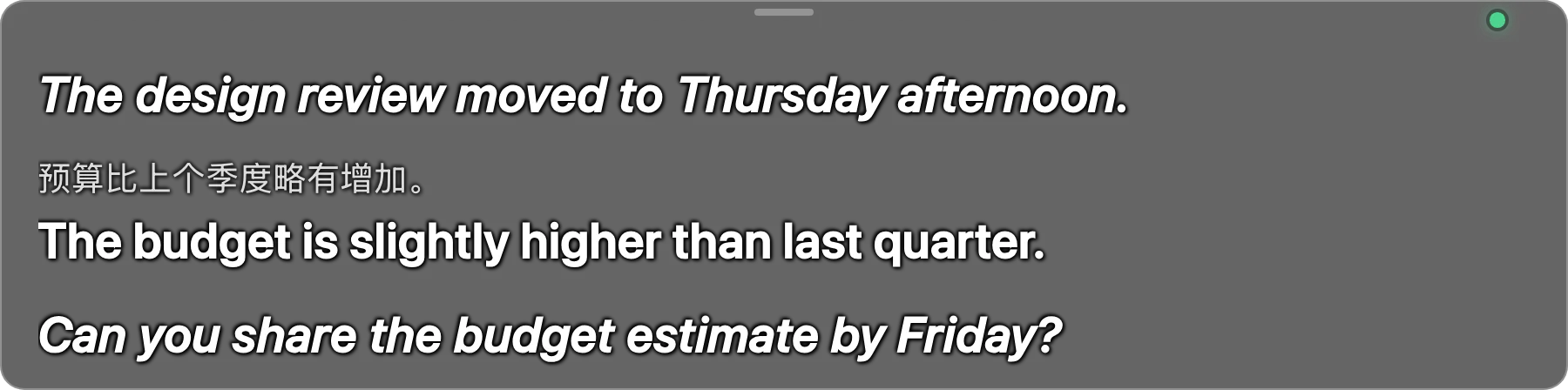
While the bar is unlocked, drag anywhere on it to move it; the small handle at the middle of the top edge shows that it can be moved. Drag an edge or a corner to resize it; the smallest size is 320 × 80. The app remembers the position and size separately for each screen. By default the bar sits in the middle of the screen, near the bottom edge.
Lock and unlock (click-through)
Lock the bar so the mouse passes straight through it and it never blocks the buttons or the chat box of your meeting. When locked, the top handle disappears, the outline fades and the bar has no buttons.
- On the Home screen, in the Subtitle bar card: click Lock (click-through) or Unlock.
- The shortcut ⌃ + ⌥ + L.
- The menu bar menu: Lock subtitles (click-through) or Unlock subtitles.
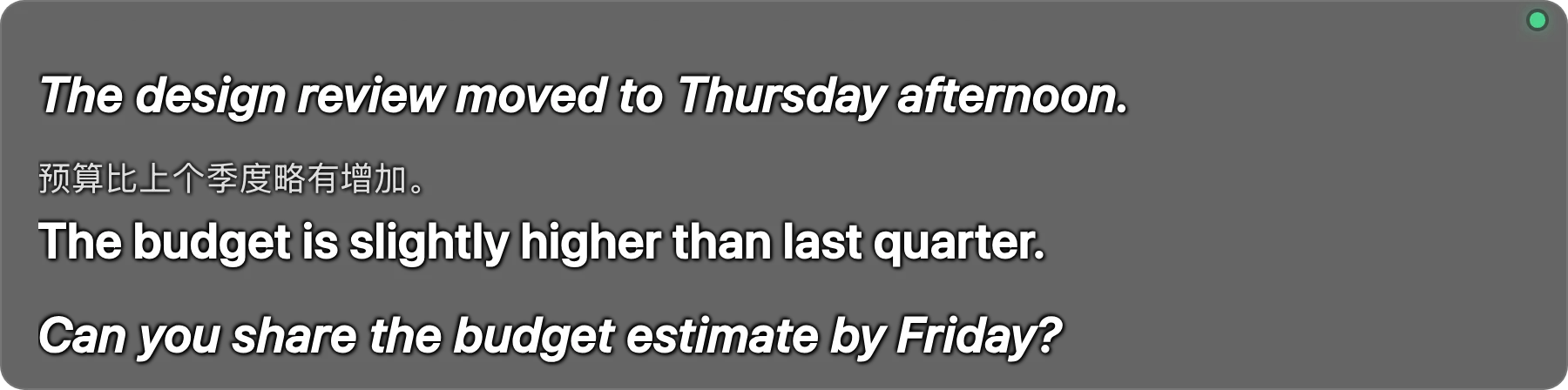
You cannot click a locked bar.
To unlock it, use the shortcut, the menu bar menu or the button on the Home screen.
Show and hide
Hover over an unlocked bar to reveal the ✕ button in the top-right corner (“Close subtitles and stop translating”; it turns red when you hover over it). Clicking it hides the bar and stops the translation in one go, so you do not also need to click Stop; the app does not quit. To hide the bar and keep translating, use ⌃ + ⌥ + H, the Hide button on the Home screen, or the menu bar menu; the same options bring the bar back. The bar starts hidden when you open the app, appears when you click Start, and keeps its last lines when you click Stop.
Scroll back through sentences
The bar keeps up to the last 1000 sentences of the session. While you are at the bottom, it follows new sentences by itself. Scroll up with the mouse wheel or trackpad (while unlocked) and it stops following and shows a ↓ Latest button in the bottom-right corner; click it to return to the current sentence. When the bar is locked the mouse passes through, so use ⌃ + ⌥ + PageUp and ⌃ + ⌥ + PageDown, which scroll by about 80 % of the bar's height; then the Latest label only signals that you are looking at older sentences. MacBook keyboards have no dedicated Page Up and Page Down keys; if they are awkward, change these two shortcuts.
Font size, colors, opacity
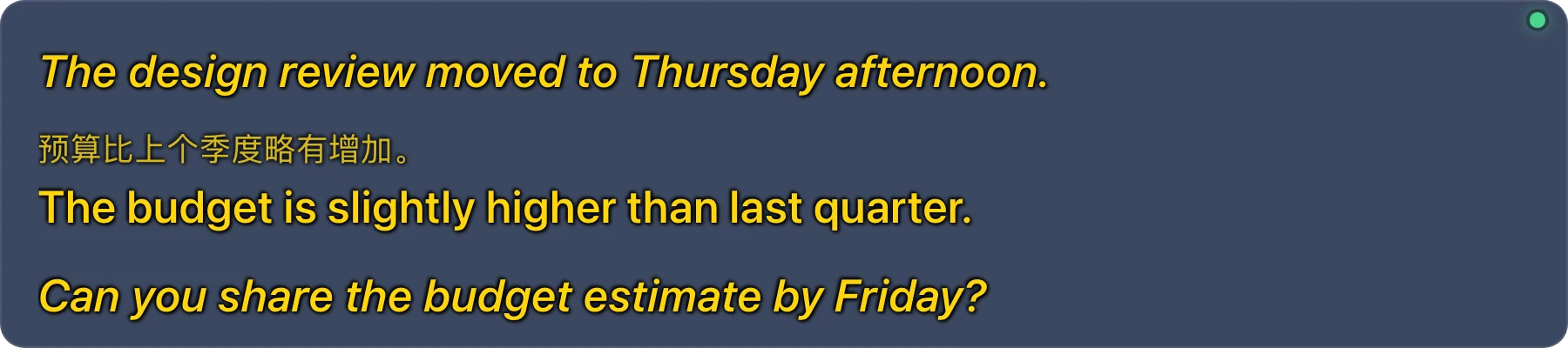
Open Settings › Subtitles. The Preview at the top draws a sample sentence with your text color, background, opacity and font size, and updates even while you drag a slider. The real bar changes at once too; to see it on the real bar when you are not translating, click Show on the Subtitle bar line.
| Setting | Choices | Default |
|---|---|---|
| Font size | 14 to 48 px | 20 px |
| Text color | White, Yellow, Green, Light blue, Orange | White |
| Background color | Black, Dark gray, Navy, Dark brown, Dark purple | Black |
| Background opacity | 0 to 100 % (0 % is a transparent background, 100 % is solid) | 60 % |
| Show the original text above the translation | On or off | On |

Indicators on the bar
The top-right corner of the bar holds a dot and a few short notes:
| You see | It means |
|---|---|
| A small green dot | Sound is coming in. With no sound the dot is a faint white. The dot only shows while a session is running |
| Loading models… | The first seconds of a session while the AI processing starts |
| Falling behind | Subtitles are later than the speech |
| No audio heard… | No sound for a while; check that the meeting is playing |
| Less than 5 minutes of translation left | You are close to your quota |
| Translation quota used up · resets … | The session stopped; the quota reopens at the time shown on the bar |
A lighter line is a provisional subtitle, replaced by the finished sentence when the speaker carries on. A small “not translated” tag marks a sentence the app could not translate.
Default shortcuts
Shortcuts work in every app, even when AI Translator is not the window in front.
| Action | macOS | Windows |
|---|---|---|
| Start or stop translating | ⌃ + ⌥ + T | Ctrl + Alt + T |
| Show or hide subtitles | ⌃ + ⌥ + H | Ctrl + Alt + H |
| Lock or unlock subtitles | ⌃ + ⌥ + L | Ctrl + Alt + L |
| Scroll subtitles up (older sentences) | ⌃ + ⌥ + PageUp | Ctrl + Alt + PageUp |
| Scroll subtitles down (newer sentences) | ⌃ + ⌥ + PageDown | Ctrl + Alt + PageDown |
| Open or close the Type & Translate box | ⌃ + ⌥ + G | Ctrl + Alt + G |
On macOS, ⌃ is the Control key and ⌥ is the Option key (not Command).
The Type & Translate shortcut only works while Type & Translate is turned on (Settings › Type & Translate). See Type & Translate for how to use the compose box.
Change a shortcut
- Open Settings › Shortcuts.
- Click Change next to the action.
- Press the new shortcut, or Esc to cancel.
A new shortcut needs at least one of Ctrl, Alt or Cmd; Shift alone is not enough. The app says “This shortcut is already used for another action.” if you pick one of its own shortcuts, and “The system refused this shortcut; another app may be using it.” if the operating system declines it. We have not checked whether the default keys clash with shortcuts in Zoom, Teams or Meet; if you find a clash, change the shortcut here.

The menu bar and tray menu
The AI Translator icon in the menu bar (a speech bubble with sound waves) lets you control the app without opening the main window. Hover over it to see the status, “Ready” or “Translating”.
On Windows, the icon (the app's color logo) sits in the system tray at the right end of the taskbar; Windows may hide it behind the ^ arrow. Right-click the icon to open the menu below; left-click it to open the main window.
| Menu item | When it appears |
|---|---|
| Start translating / Stop translating | Changes with the state |
| Show subtitles / Hide subtitles | Changes with the state |
| Lock subtitles (click-through) / Unlock subtitles | Changes with the state |
| Open main window | Always |
| Check for updates… | Always; opens Settings › General and checks right away |
| Restart to update | When an update has been downloaded and the app is not translating |
| Quit | Always; stops a running session, then quits for good |
| Some shortcuts could not be registered | Only when a shortcut failed |
Why closing the window does not quit the app
AI Translator is designed to live in the menu bar (macOS) or the system tray (Windows) so its shortcuts and a running session keep working after you close the main window. The close button only hides the window. On a Mac, ⌘Q does not quit either: the app brings the main window back with the note “AI Translator keeps running in the menu bar. To quit, choose Quit from the menu bar icon.” To quit completely, choose Quit from the icon in the menu bar or the system tray.
Something not working? See troubleshooting. For an overview, see the features page.