
macOS (Apple Silicon) · Windows 10/11 · 10-day free trial
AI-translated subtitles for every meeting, running on your computer
AI Translator is a desktop app that turns the audio playing on your computer into floating translated subtitles, and translates the messages you type into the other person's language. The AI runs on your own machine, so your audio and meeting content never go to the cloud. Use it with Zoom, Microsoft Teams, Google Meet, Zalo PC, webinars or videos.
- AI runs 100 % on your device
- Meeting data never goes to the cloud
- No bot, no account
See AI Translator in action
A video meeting where a colleague speaks Vietnamese and English subtitles appear, then Type & Translate turns an English reply into Vietnamese for a chat message. 39-second video with sound.
Hear the meeting in another language, read it in yours
The app listens to the audio playing on your computer and shows the translation on a floating subtitle bar, with the original in small type above. No bot joins the meeting, and nobody else has to install anything.
- Five languages, translated between any two of them: English, Chinese (中文), Japanese (日本語), Korean (한국어), Vietnamese (Tiếng Việt); the spoken language is detected automatically
- Subtitles appear right after the speaker finishes a sentence: a median under 1.1 seconds on a Mac M4 Pro (Standard model pack), and other computers may be slower (test conditions)
- The subtitle bar stays on top: drag it, change the text size and colors, and Lock it so clicks pass through
- A glossary gives the translator hints for names and industry terms (a Pro feature)

Reply in the other person's language
Press ⌃⌥G (Windows: Ctrl+Alt+G) in the chat box you are using, type in your own language and press Enter: the translation is pasted into the chat box for you to check and send.
- Pastes into the box you are typing in, in any app that accepts pasting (⌘V, Ctrl+V)
- Translated on your computer: what you type never leaves it
- Included in every plan, and it does not use translation time

Look back at a meeting after it ends
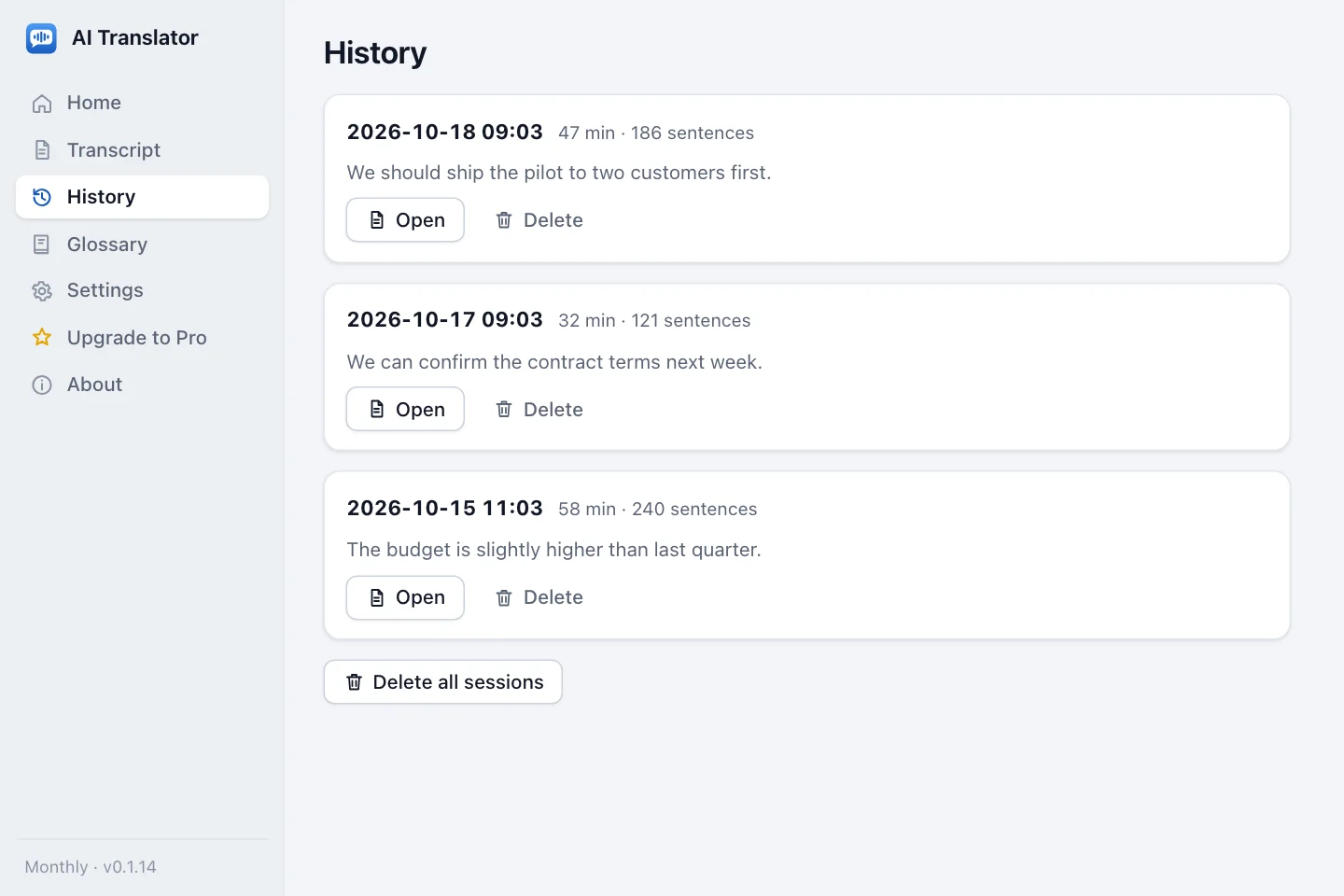
Every session has a transcript with the time, the original and the translation of each sentence. Turn on history to reopen past meetings, find a sentence, copy it or export it to a file.
- Every plan: view, search and copy the transcript of your latest session
- Pro feature: save the history of your sessions, reopen past ones, export as TXT, SRT or Markdown
- Saving history is off by default; when you turn it on, it is encrypted and stays on your computer
Get started in four steps
Install and set up once; after that, every meeting only takes a press of Start.
Install with one command
Paste the install command from the Download page into Terminal (macOS) or PowerShell (Windows). The app downloads, checks itself and opens.
Set it up the first time
Choose your language, accept the terms, download the models (about 1.3 GB or 2.5 GB), allow system audio recording (macOS only) and play a sample sentence.
Press Start in your meeting
Choose the language you want to read in Translate into and press Start (shortcut ⌃⌥T, Windows: Ctrl+Alt+T). Subtitles appear on the floating bar; drag it wherever it is easy to read.
Reply and look back
Press ⌃⌥G (Windows: Ctrl+Alt+G) to Type & Translate a message. When the meeting ends, press Stop and open Transcript or History in the sidebar.

The macOS build is signed ad-hoc and not notarized; the Windows build is not code-signed yet. Installed with the command, macOS opens the app directly and SmartScreen does not ask; a file downloaded in a browser may be blocked or warned about on first launch, and Smart App Control in blocking mode blocks the Windows build. See the installation guides for macOS and Windows.
The AI runs on your machine, so your meeting never leaves it
Speech recognition, translation and subtitles all happen on your own computer, with no cloud AI service involved.
- Your computermeeting audio
- Internet
- Provider serverplus an AI on the cloud
- Internet
- Subtitlesback to you
The meeting audio leaves your computer and is processed somewhere you do not control.
- Audioon your computer
- AI running on your computerrecognition + translation
- Subtitleson your screen
No trip to the cloud: the audio, the transcript and the translation stay on your computer.
Audio never leaves your computer
Audio lives only in RAM: it is never written to disk and never sent over the network, which we checked with a network proxy on macOS. No server is needed to translate, so subtitles keep coming even when your connection is flaky or drops.
No meeting content on our server
Our server only stores your email (when you buy, or when you choose to leave it in the support chat), orders, licenses, device-activation details (a hashed machine ID and device name), the Free-trial start (a hashed machine ID), a log of license changes, error reports with personal data scrubbed out (kept for 30 days) and support chat messages if you use the chat (kept for 90 days), never meeting content.
Four simple plans, prepaid by VietQR or international card
No auto-renewal, no recurring billing, nothing is ever charged automatically.
Free
Try it before you decide.
10-day trial · once per device
- Live translated subtitles in all 5 languages
- 30 minutes per day during the 10-day trial
- Subtitle bar, shortcuts and copying the transcript
Monthly
For regular meetings and short projects.
or $3.99 by international card
per 30 days · prepaid
- 50 hours of translation per 30-day cycle
- Pro features: glossary, history, TXT/SRT/Markdown export
- Renew when you need it, never charged automatically
6 Months
For a half-year project or steady use.
or $21.99 by international card
per 180 days · prepaid
- 100 hours of translation per 30-day cycle
- All Pro features
- One payment for half a year, about 44,800 ₫ per month
Yearly
For daily use. Best value.
or $39.99 by international card
per 365 days · prepaid
- Unlimited translation time for 365 days
- All Pro features
- One payment for the whole year, about 41,700 ₫ per month
VND prices are paid by VietQR from a Vietnamese bank; USD prices are paid by international card and exclude tax (if any).
What you may want to know first
Does AI Translator need an internet connection?
Not while it is translating. Speech recognition, translation and subtitles all run on your computer. You only need the internet to download the app and the models the first time (about 1.3 GB or 2.5 GB), to register the free trial, to buy a plan, to verify your license (paid plans work offline for up to 14 days between checks) and to update the app.
How do I translate a Zoom meeting into my language without a bot?
Open AI Translator, choose the language you want to read and press Start. The app listens to the Zoom audio playing on your computer and shows translated subtitles in a floating bar. No bot joins the meeting and the host does not need to enable anything; other participants are not notified, so tell them yourself if your rules require it.
Does it work with Zoom, Teams, Google Meet and Zalo?
Yes. The app captures your computer's system audio, so it does not depend on which meeting app, webinar or video you use, and it needs no bot and no plugin. We tested audio capture on macOS with Zoom, Google Meet, Microsoft Teams and Zalo PC (internal testing, not a certification by those companies). On macOS you can also choose to listen to one specific app only.
Is my meeting audio sent anywhere?
No. While you translate, audio exists only in memory (RAM). It is never written to disk and never sent over the network. We checked with a network proxy on macOS: during translation, the app sent no audio and no transcript text out.
Can I get translated meeting subtitles for free?
AI Translator has a free 10-day trial with up to 30 minutes of translation a day, no card and no account. After that you need a prepaid plan: Monthly 50,000 ₫ (50 hours per 30 days), 6 Months 269,000 ₫ (100 hours per 30 days, for 180 days) or Yearly 500,000 ₫ (unlimited for 365 days). Free is a trial, not a permanent free plan.
Can I pay from outside Vietnam?
Yes. Besides VietQR bank transfer in VND (from a Vietnamese bank), the Upgrade screen in the app lets you pay by international card in US dollars, on the Creem payment page: Monthly $3.99, 6 Months $21.99, Yearly $39.99, excluding tax. Cards are not accepted in some countries, per Creem's list. The Free trial needs no payment method.
Ready to understand every meeting?
Install with one command (Terminal on a Mac, PowerShell on Windows) and try it free for 10 days. No card needed.