
Live meeting translation features, running on your computer
This is what AI Translator can do today, exactly as it works in the app. Anything that is only in the paid plans is marked clearly.
Features at a glance
Live translation
5 languages, auto-detect
Subtitle bar
Drag, lock, resize the text
Transcript
History, export (Pro)
Glossary
Names and terms (Pro)
Type & Translate
Chat in the other person's language
Audio source
Any meeting app, no bot
Shortcuts and tray
Control without leaving the meeting
Models and hardware
Standard and Lite packs
Performance
Measured, with conditions
AI translation without putting your meeting in the cloud
Two AI models, one for speech recognition and one for translation, run directly on your computer. No step sends your audio or meeting content to a server or a cloud AI service.
- Your computermeeting audio
- Internet
- Provider serverplus an AI on the cloud
- Internet
- Subtitlesback to you
The meeting audio leaves your computer and is processed somewhere you do not control.
- Audioon your computer
- AI running on your computerrecognition + translation
- Subtitleson your screen
No trip to the cloud: the audio, the transcript and the translation stay on your computer.
Two AI models running locally
One model recognizes speech and one translates. Both are downloaded once and then run on your machine using the GPU or the CPU.
Low latency because there is no detour
There is no round trip to a server, so the translation appears right after the speaker finishes a sentence. Median under 1.1 seconds on a Mac M4 Pro; the test conditions are in the Performance section below.
Conversation data stays on your computer
Audio lives only in RAM; the transcript and translation stay on your machine. History is off by default and, if you turn it on, is encrypted on your computer.
Listen, recognize, translate and show subtitles in one loop
AI Translator captures the audio playing on your computer, splits it into sentences, recognizes the speech, translates it and shows the result on the subtitle bar. On a Mac M4 Pro the full translation appears about a second (median) after the speaker finishes a sentence; other computers may be slower, see the measurements.
- Five languages for both the source audio and the translation: English, Chinese (中文), Japanese (日本語), Korean (한국어), Vietnamese (Tiếng Việt). We plan to add more languages in the future (no schedule yet)
- Automatic detection of the spoken language among the ones you tick under Languages spoken in the meeting, or lock a single one in Source language when you know what will be spoken
- A sentence that is already in the language you want to read is shown as it is, not translated again
- A sentence that is not final yet appears dimmer, then is replaced by the complete sentence when the speaker carries on
- Filters out the "phantom" sentences that speech recognition tends to invent over music or silence
- Recognized Chinese text is converted to Simplified characters

Subtitles go one way: from the meeting to you.
AI Translator translates the audio coming out of your computer into your language. It does not translate your own voice into the meeting yet. To reply in writing in the chat, use Type & Translate: you type in your own language and the app pastes the translation into the chat box. If both sides install the app, each person sees subtitles of the other side.
A floating bar you can customize, out of your meeting's way
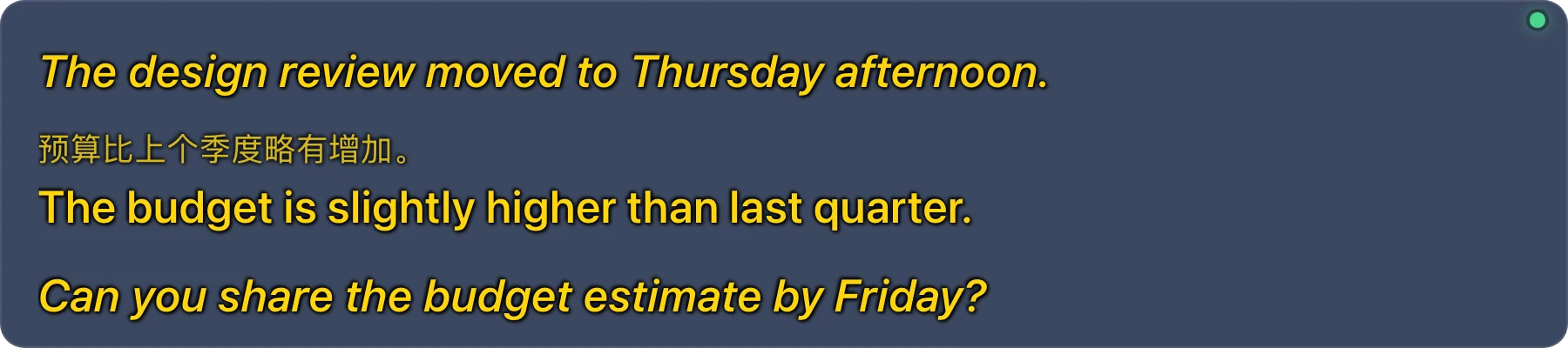
The subtitle bar is its own borderless window with a translucent background. It stays on top and never takes focus from your meeting app, so you can keep typing in chat or clicking buttons as usual.
- Drag it to move it, drag an edge or corner to resize it; its position and size are remembered for each screen
- Text size 14–48 px, 5 text colors (white, yellow, green, light blue, orange), 5 background colors, background opacity 0–100 %
- Lock: mouse clicks pass through the bar and no buttons get in the way; unlock it with a shortcut or from the tray menu
- Keeps the last 1,000 sentences; scroll back with the mouse wheel or a shortcut, and the Latest button takes you back to the current sentence
- The original text in small type above the translation (on by default, can be turned off)
- Small indicators in the corner: listening with sound detected, loading models, falling behind, less than 5 minutes of translation left


Any meeting app, no bot, no plugin
Because the app captures system audio, AI Translator works with anything that makes sound: Zoom, Microsoft Teams, Google Meet, Zalo PC, webinars, videos and online courses.
- macOS: listen to the whole system (except the app itself) or to a single app that is playing sound, so notification sounds from other apps are not translated by mistake
- Windows: the default playback device, or a device you choose
- The source reopens automatically when you switch playback devices, for example when you plug in headphones or connect Bluetooth
- Pause that ends a sentence is adjustable from 50 to 800 ms: shorter gives you subtitles sooner, longer cuts fewer sentences in half
On macOS, the first time you press Start the system asks for the system audio recording permission. The app does not use the microphone. See how to grant the audio permission. Windows needs no such permission.
Keep what you heard, your way
The transcript of the current session works on every plan. Saving history and exporting to a file are Pro features.

- Transcript: every line has a time, the original sentence and the translation; search and copy all on every plan
- Export to TXT, SRT or Markdown; for SRT you choose whether the text is the translation or the original Pro
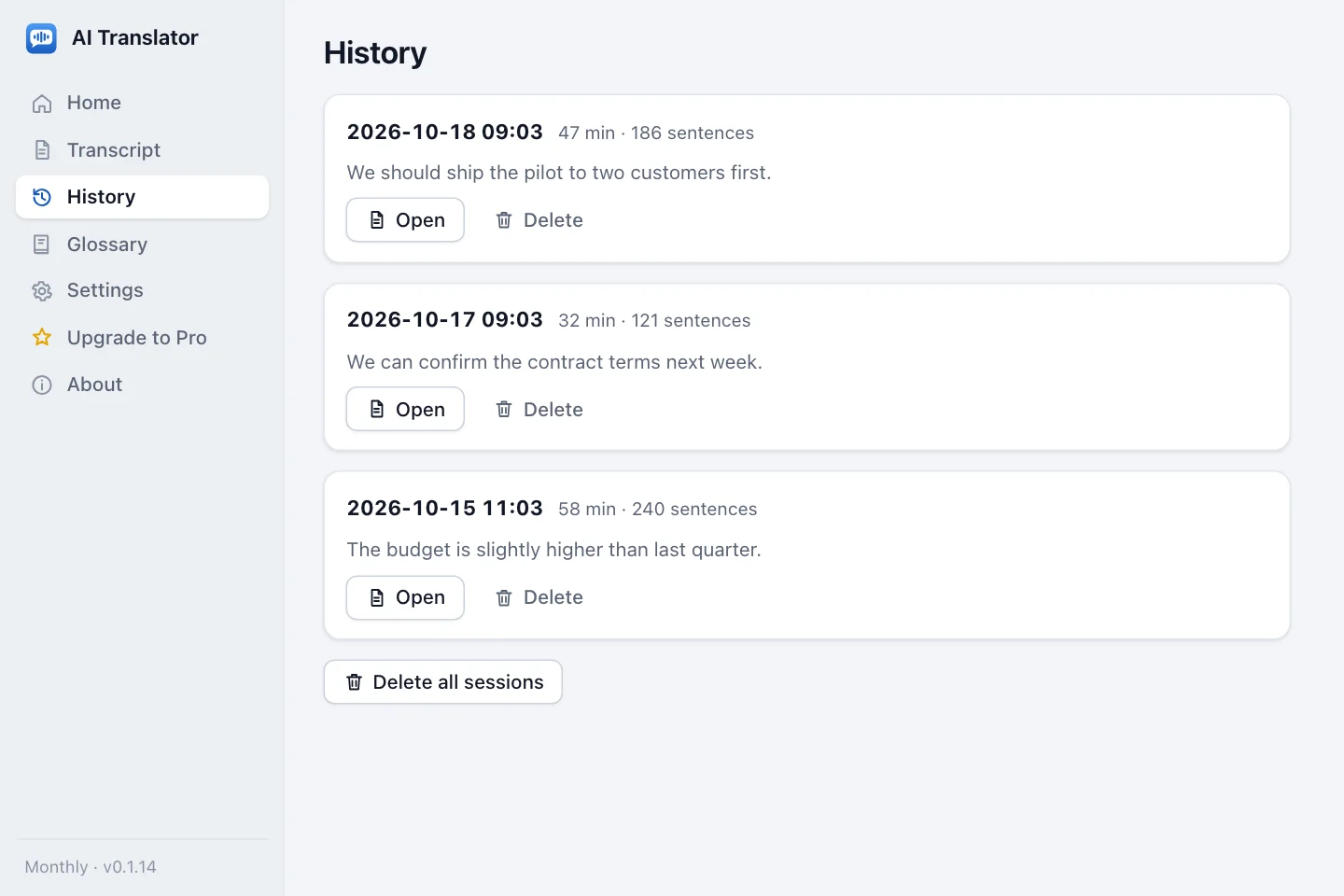
- Session history: review, open and delete sessions one by one, or all at once Pro
- History is off by default. When you turn it on, it is stored on your computer, encrypted, with the key kept in the Keychain (macOS) or Credential Manager (Windows)
- Delete history and glossary from this computer with one button (after a confirmation; a separate button also deletes the models), on every plan
Read the guide to history and export

Hints for names and terms, passed to the translator
Add source → target pairs for product names, partner names and industry terms. When a sentence contains one of them, the app passes it to the translator as a hint.
- Up to 500 terms, with CSV import and export (two columns, UTF-8)
- Matching ignores case; Chinese, Japanese and Korean terms also match inside words
- Up to 20 relevant entries are used for each sentence
Terms are hints for the translator, so correct use is not guaranteed every time. The app says so too.
Chat in the other person's language, right in the chat box you are using
Press ⌃ + ⌥ + G (Windows: Ctrl + Alt + G) in the chat box of the app you are using. Type in your own language in the floating compose box and the translation appears right below. Press Enter to paste the translation into the chat box, check it, then press Enter again to send.
- Translates into the language of the people you talk to, taken from your subtitle settings, or a language you choose
- Included in every active plan, Free during the trial too, and it does not use translation time
- Translated on your computer: what you type and its translation never leave it
- Type with your usual keyboard and input method; if translating fails, the app never pastes your original text
On macOS, auto-paste needs the Accessibility permission; without it the app copies the translation so you can paste it with ⌘V. See the Type & Translate guide.

Control it without leaving the meeting
Six global shortcuts work even when AI Translator is not the window in front. You can change each one in Settings › Shortcuts.
| Action | macOS | Windows |
|---|---|---|
| Start or stop translating | ⌃ + ⌥ + T | Ctrl + Alt + T |
| Show or hide subtitles | ⌃ + ⌥ + H | Ctrl + Alt + H |
| Lock or unlock subtitles | ⌃ + ⌥ + L | Ctrl + Alt + L |
| Scroll subtitles up (older sentences) | ⌃ + ⌥ + PageUp | Ctrl + Alt + PageUp |
| Scroll subtitles down (newer sentences) | ⌃ + ⌥ + PageDown | Ctrl + Alt + PageDown |
| Open or close the Type & Translate box | ⌃ + ⌥ + G | Ctrl + Alt + G |
On macOS, ⌃ is Control and ⌥ is Option. A shortcut needs at least one of Ctrl, Alt or Cmd/Win.
The menu bar icon (macOS) or system tray icon (Windows) lets you start or stop translating, show or hide and lock the subtitles, and open the main window. Closing the window only hides the app in the tray; to quit completely, choose Quit.

Two model packs, and the app recommends the one that fits
The recognition and translation models are downloaded once and then run entirely on your computer. The app checks your RAM, free disk space and graphics card to recommend a pack.
| Detail | Standard pack | Lite pack |
|---|---|---|
| Download | about 2.5 GB | about 1.3 GB |
| RAM while running (M4 Pro) | about 2.9 GiB | about 1.8–1.9 GiB |
| The app recommends it for | A Mac with 16 GB or more; Windows with 16 GB or more and a discrete card with 6 GB of VRAM | Computers with 8 GB up to under 16 GB, or Windows without a capable discrete card |
The Lite pack recognizes speech less clearly than Standard in Vietnamese, Japanese, Korean and Chinese. If you listen to those languages a lot, choose the Standard pack.
- macOS
- macOS 14.2 or later, Apple Silicon (M1 or newer)
No version for Intel Macs - RAM
- At least 8 GB, 16 GB recommended
- Disk
- At least 1 GB free on top of the size of the model being downloaded
- Windows
- Windows 10/11 64-bit (x64), CPU with AVX2
For the Standard pack, a discrete graphics card with 6 GB or more of VRAM is recommended. Not code-signed yet, so SmartScreen may warn during installation; latency on Windows has only had a preliminary test on one laptop with integrated graphics, slower than on a Mac M4 Pro (see Performance)
Real measurements, with the conditions
We publish only what we measured, on the machine we measured it on, and we say which machines we have not tested.
| Measurement (Mac M4 Pro 24 GB, macOS 26, Apple GPU) | Standard pack | Lite pack |
|---|---|---|
| Median (p50) delay: from the speaker finishing a sentence to the complete translation appearing | 0.76–1.03 s | 0.61–0.84 s |
| p90 delay | 0.94–1.34 s | 0.73–1.14 s |
| First translated word appears (p50) | 0.63–0.69 s | 0.52–0.57 s |
| RAM while running | 2.9 GiB | 1.8–1.9 GiB |
Long sessions
One continuous session of 5 h 23 min (a lecture video in English, on an ad-hoc-signed release build): 6,019 segments, no errors, median delay 0.48 s. In a 2-hour stability test, no component was restarted.
Translation and recognition quality
In an internal test across eight directions involving Vietnamese, run through the app's own translation path, the Standard pack's translation model scored an average of about 0.84 on an automatic translation-quality score (scale 0 to 1, table below). We chose the translation model by comparing several models on a separate test set. On clean read speech, Vietnamese recognition in the Standard pack has a word error rate of 8.7 %. That is read speech, not real meeting conversation.
Translation and recognition quality by direction
Automatic translation-quality scores were measured through the app's own translation path (the same setup as in real use), 100 sentences per direction (Vietnamese → Chinese, Japanese, Korean: 40 sentences). It is a relative score from 0 to 1, higher is better; it is not a percentage accuracy.
| Direction (text) | Standard pack | Lite pack |
|---|---|---|
| English → Vietnamese | 0.842 | 0.841 |
| 中文 → Vietnamese | 0.829 | 0.831 |
| 日本語 → Vietnamese | 0.830 | 0.815 |
| 한국어 → Vietnamese | 0.834 | 0.822 |
| Vietnamese → English | 0.821 | 0.822 |
| Vietnamese → 中文 | 0.836 | 0.821 |
| Vietnamese → 日本語 | 0.847 | 0.845 |
| Vietnamese → 한국어 | 0.851 | 0.842 |
| Speech recognition (error rate, lower is better) | Standard pack | Lite pack |
|---|---|---|
| English (word errors) | 5.4 % | 6.6 % |
| Vietnamese (word errors) | 8.7 % | 22.5 % |
| 中文 (character errors) | 5.6 % | 9.6 % |
| 日本語 (character errors) | 4.5 % | 13.1 % |
| 한국어 (character errors) | 4.1 % | 8.2 % |
How to read this: the translation test set leans toward everyday spoken language, so it is only a rough proxy for meeting speech; recognition was measured on clean read speech (about 15 minutes per language), not real meeting conversations, and in a simulated narrowband-audio test (like a Bluetooth headset in call mode) the error rate rose; we have not tested real headsets. All eight directions above involve Vietnamese; the other 12 directions among English, 中文, 日本語 and 한국어 run but have no quality score yet. The Lite pack is noticeably less accurate at recognizing Vietnamese, Japanese, Korean and Chinese.
What we have not measured, and do not promise
All the figures above were measured on a single Mac M4 Pro, with a 300 ms pause to end a sentence (the app's current default is 50 ms; the 5-hour session used the default). We have not measured: an M1 Mac, 8 GB computers, discrete Windows graphics cards, battery and power use, accuracy on real meeting conversation or over Bluetooth headsets, and translation quality for directions that do not involve Vietnamese (they work, but we have no quality score to publish). A preliminary test on one Windows laptop (Core i5-1345U, integrated graphics, 32 GB of RAM, Windows 11; 6 sessions of 17–23 sentences per setup) gave a median latency of 1.3–2.6 seconds for the Lite pack and 2.7–5.4 seconds for the Standard pack, which did not meet our latency target. That laptop is stronger than our minimum machine, so these are not figures for a weak PC.
Which feature is in which plan
| Feature | Free (trial) | Monthly | 6 Months | Yearly |
|---|---|---|---|---|
| Live translated subtitles, 5 languages | Yes | Yes | Yes | Yes |
| Customizable subtitle bar, shortcuts, tray | Yes | Yes | Yes | Yes |
| View, search and copy the transcript | Yes | Yes | Yes | Yes |
| Glossary (up to 500 terms) | No | Yes | Yes | Yes |
| Save session history | No | Yes | Yes | Yes |
| Export to TXT, SRT, Markdown | No | Yes | Yes | Yes |
| Translation time | 30 min per day, for 10 days | 50 hours per 30 days | 100 hours per 30 days, for 180 days | Unlimited, for 365 days |
| Price (VietQR, VND) | 0 ₫ | 50,000 ₫ | 269,000 ₫ | 500,000 ₫ |
| Price (international card, USD, excluding tax) | — | $3.99 | $21.99 | $39.99 |
Try it on your real meetings
A free 10-day trial with 30 minutes a day. No card, no account.